
After an attempt to contact a patient, you will want to make notations regarding the attempt and/or contact. One of the best ways to record this information is through the Office Journal.
To add an Office Journal entry
1. From any Dentrix module's toolbar except the Office Manager, click the Continuing Care button.
The Continuing Care window appears.
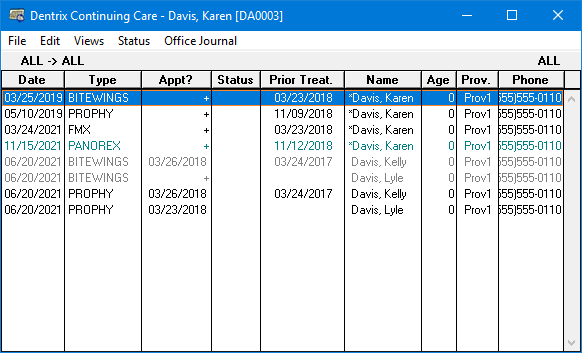
2. Click Office Journal.
The Office Journal window appears.
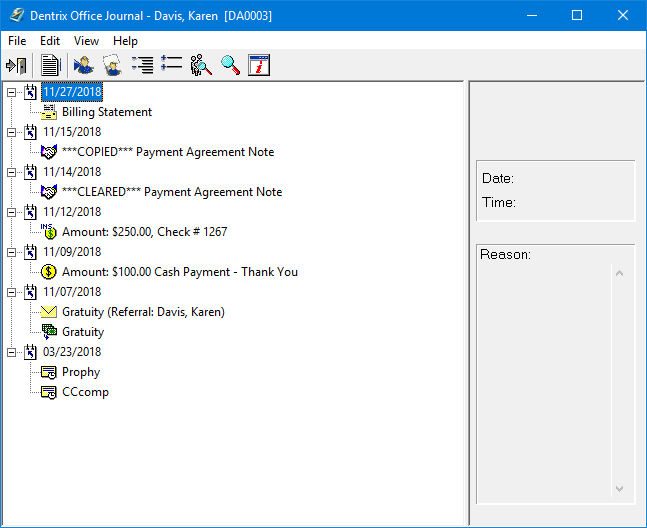
3. In the Edit menu, click Add.
The Add Journal Entry dialog box appears.
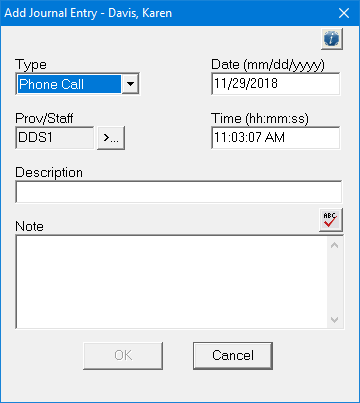
4. From the Type list, select one of the following:
Phone call - Use when making a phone call to a patient. Record information regarding the conversation.
Reminder - Use with a future date to remind the office about a contact with a patient.
Misc - Use to record any other important details when you contact the patient.
HIPAA Privacy - Use to track HIPAA Privacy related journal entries.
5. Click the Prov/Staff search button.
The Select Provider/Staff dialog box appears.
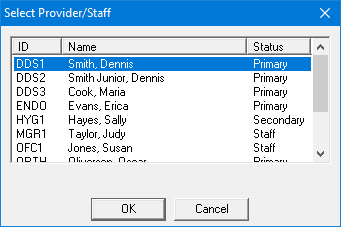
6. Select the appropriate provider or staff member, and then click OK.
7. Do the following:
Description - Type a short description of the journal entry.
Note - Type a comprehensive description of the journal entry.
8. Click OK.